
This guide walks you through granting Adverio access to your Amazon Seller Central account via the Solution Provider Portal (SPP). You must be logged in as the primary/admin user to complete these steps.
Access has three parts
Complete all three so our team can work across Seller Central, the Advertising console and Brand Registry. It takes about ten minutes.
Selling in the UK or Europe? Read this first.
The process below is identical in every Amazon store. The Solution Provider Portal is a single global platform, so the steps and the consent page work the same way. Three things change outside the United States.
1. Use the authorization link for your region. The link in Step 1 is for stores in the United States. If you sell in the UK or Europe, your link is different, so ask your Adverio rep for the one for your store. When it asks you to sign in, use that store's Seller Central login:
https://sellercentral.amazon.com/https://sellercentral-europe.amazon.com/https://sellercentral-europe.amazon.com/sellercentral.amazon.nl / .se / .pl / .com.be / .ie2. If you sell in both the UK and the EU, you have two accounts. Since Brexit the United Kingdom sits outside the European Unified Account, so there are two separate Seller Central accounts. Run these steps twice, signed in to each account in turn.
3. Some rows in the permission tables will not appear in your account. Several listed features are United States or North America programs. If a row is missing, nothing has gone wrong. Rows that do not apply everywhere are marked in the tables below.
Amazon no longer requires sellers to create partner invitations manually. Instead, below is Adverio's secure authorization link that has been provided by Amazon.
Click HERE to open it and follow the steps below.
https://sellercentral.amazon.com/apps/authorize/global/serviceConsent?solution_id=amzn1.sp.solution.a8a34a6b-bda0-4710-b17d-02d6190a95c7
Please sign in using your primary or administrator Seller Central credentials. Secondary users do not have the authority to grant partner access.
If you are already signed in on your browser, you will be directed to the consent page automatically.
The consent page displays the roles Adverio is approved to access. We recommend reviewing these carefully before continuing.
Only roles within Adverio's approved service category will be shown, so the list will be more limited than a standard Seller Central permissions screen.
Please select each marketplace you would like Adverio to manage, such as the US, UK, and EU stores.
Any marketplace not selected will remain inaccessible to our team, and adding it later will require repeating this process.
Submit your authorization, then let your Adverio rep know it's done.
We will verify access on our end and assign the appropriate team members to your account.
These tables list the access levels we use to run your account review. The consent page shows a narrower set, limited to the roles Adverio is approved for.
| Feature | None | View | Edit | Admin |
|---|---|---|---|---|
| A+ Content Manager | ||||
| Campaign Manager | ||||
| Coupons | ||||
| Creator ConnectionsUS ONLY | ||||
| Customer Engagement | ||||
| Daily Budget | ||||
| Deals | ||||
| Early Reviewer ProgramRETIRED | ||||
| Link Macros | ||||
| Manage Bids | ||||
| Manage Text Ads (Beta) | ||||
| Points | ||||
| Posts (Beta)VARIES BY STORE | ||||
| Price Discounts | ||||
| Prime Exclusive Discounts | ||||
| Promotions | ||||
| Promotions F3 | ||||
| Register for Sponsored Products | ||||
| VineVARIES BY STORE |
| Feature | None | View | Edit | Admin |
|---|---|---|---|---|
| Loan RegistrationVARIES BY STORE |
| Feature | None | View | Edit | Admin |
|---|---|---|---|---|
| Manage Refunds |
| Feature | None | View | Edit | Admin |
|---|---|---|---|---|
| Amazon Brand AnalyticsVARIES BY STORE | ||||
| Brand Benefit Eligibility | ||||
| Brand Referral BonusUS ONLY | ||||
| Brand Tailored PromotionsVARIES BY STORE | ||||
| Build Your Brand | ||||
| Create a Brand Name | ||||
| Customer Engagement (MYCE) | ||||
| Customer Experience Metrics | ||||
| Customer Reviews | ||||
| Manage Your Experiments | ||||
| Product Bundles | ||||
| Product Support Resolution Center |
| Feature | None | View | Edit | Admin |
|---|---|---|---|---|
| Accelerator Global | ||||
| Climate Pledge Friendly, EnrollmentVARIES BY STORE | ||||
| Create 3D Models | ||||
| Flexible Customer FinancingUS ONLY | ||||
| Low-Cost Store | ||||
| Marketplace Product Guidance | ||||
| New Seller Incentives+ Benefit Portal | ||||
| Prime Try Before You BuyRETIRED | ||||
| Product Opportunity ExplorerVARIES BY STORE | ||||
| Revenue Calculator | ||||
| Seller Assistant | ||||
| Seller RewardsUS ONLY | ||||
| Subscribe and SaveVARIES BY STORE | ||||
| Sustainability Solutions Hub, Reporting |
| Feature | None | View | Edit | Admin |
|---|---|---|---|---|
| Customized Content Manager | ||||
| Help Builder Tool | ||||
| Internal Feed Uploader | ||||
| Upgrade/Downgrade |
| Feature | None | View | Edit | Admin |
|---|---|---|---|---|
| Add Products via Upload | ||||
| Amazon Warehousing & Distribution, Secondary User AccessUS ONLY | ||||
| Catalog Manager | ||||
| Certified Refurbished Tools | ||||
| Dropship for Webstore Manager | ||||
| FBA Analytics | ||||
| FBA Dashboard | ||||
| Fulfillment Programs | ||||
| Global FBA Inventory | ||||
| Image Management | ||||
| Inbound Performance Dashboard | ||||
| Inventory Performance | ||||
| Inventory Planning | ||||
| Item Classification Guide | ||||
| Manage Community Content | ||||
| Manage FBA Inventory/Shipments | ||||
| Manage FBA Returns | ||||
| Manage Inventory/Add a Product | ||||
| Manage Seller Fulfilled Products | ||||
| Pan-European FBA Inventory | ||||
| Promotion Amazon Merchant Access | ||||
| Quantity Overrides | ||||
| Remote Fulfillment with FBAUS ONLY | ||||
| Search Suggestions | ||||
| Seller Fulfilled Prime Analytics | ||||
| Seller Fulfilled Prime Performance | ||||
| Seller Provided Costs | ||||
| Selling Applications | ||||
| Size Charts | ||||
| Supply Chain Connect | ||||
| Upload and Manage Videos | ||||
| Upload Inventory | ||||
| Upsells |
| Feature | None | View | Edit | Admin |
|---|---|---|---|---|
| Learning and Development |
| Feature | None | View | Edit | Admin |
|---|---|---|---|---|
| Content | ||||
| Image Uploading | ||||
| Review Product Images | ||||
| Upload Look Inside The Book PDF Files | ||||
| Upload Reviewable Product Images | ||||
| Upload Search Inside The Book PDF Files |
| Feature | None | View | Edit | Admin |
|---|---|---|---|---|
| Customer Returns (Target Only) | ||||
| CVS Payment | ||||
| Manage Buyer Offers | ||||
| Manage OrdersRESTRICTED | ||||
| Manage Refunds | ||||
| Manage Returns | ||||
| Manage SAFE-T ClaimsVARIES BY STORE | ||||
| Manage Seller Fulfilled ReturnsRESTRICTED | ||||
| MFN Scheduled Delivery | ||||
| Order Reports | ||||
| Regulated Products Verification | ||||
| Self Delivery | ||||
| Set Estimated Ship Date | ||||
| Transactions | ||||
| Vendor Purchase Order Confirmation |
| Feature | None | View | Edit | Admin |
|---|---|---|---|---|
| Customers ask AlexaUS ONLY |
| Feature | None | View | Edit | Admin |
|---|---|---|---|---|
| Appeals | ||||
| Beta Selling Experience | ||||
| Customer Service By Amazon Home Page | ||||
| Customer Service by Amazon Insights Dashboard | ||||
| Fit Insights TabUS ONLY | ||||
| KPI Toolbar | ||||
| Mediation Requests | ||||
| Selling Partner Appstore | ||||
| Service Provider Network | ||||
| STEP (Your Growth Plan) | ||||
| Voice of the Customer |
| Feature | None | View | Edit | Admin |
|---|---|---|---|---|
| Automated Pricing | ||||
| Custom Pricing | ||||
| Negotiated Pricing | ||||
| Pricing | ||||
| Pricing Health | ||||
| Similar-Product Dashboard |
| Feature | None | View | Edit | Admin |
|---|---|---|---|---|
| Upload Product Ads | ||||
| View Products |
| Feature | None | View | Edit | Admin |
|---|---|---|---|---|
| SKU Economics |
| Feature | None | View | Edit | Admin |
|---|---|---|---|---|
| Account Health | ||||
| Aggregated Store Report | ||||
| Amazon Insights | ||||
| Amazon Launchpad Insights | ||||
| Brand Analytics | ||||
| Brand Catalog Manager | ||||
| Brand Dashboard | ||||
| Business Reports (B2B), Sales SummaryVARIES BY STORE | ||||
| Business Reports, Sales Summary | ||||
| Business Unit Reports | ||||
| Competitive Monitor | ||||
| Customer Services Reports | ||||
| Custom Reports | ||||
| E-commerce Reports | ||||
| End User Data Report | ||||
| Feedback | ||||
| Fulfillment Reports | ||||
| Fulfillment Tax Reports | ||||
| Global FBA Inventory | ||||
| Global Selling Dashboard | ||||
| Growth Opportunities | ||||
| Inventory Reports | ||||
| Operations Report | ||||
| Payments | ||||
| Product Ads Invoice History | ||||
| Product Ads Performance Reports | ||||
| Promotions Performance | ||||
| Sales Tax ReportUS ONLY | ||||
| Seller Fee InvoicesRESTRICTED | ||||
| Seller Rating | ||||
| Shopper Dashboard | ||||
| Stores Reports | ||||
| Tax Document Library | ||||
| Vista Business Review Reports | ||||
| Vista Business Review TSP Reports | ||||
| Web Analytics |
| Feature | None | View | Edit | Admin |
|---|---|---|---|---|
| Compliance Central | ||||
| Manage Service Requests | ||||
| Premium Services |
| Feature | None | View | Edit | Admin |
|---|---|---|---|---|
| Agreements/Amendments | ||||
| Amazon Business Seller Feature AccessVARIES BY STORE | ||||
| Business Insurance | ||||
| Business Planner | ||||
| Carrier Pickup Settings | ||||
| Fulfillment By Amazon | ||||
| Gift Options | ||||
| Global Account Settings Dashboard | ||||
| Global Messaging Dashboard | ||||
| Global Shipping Services | ||||
| Global Vacation Settings | ||||
| Manage Authorized Partners | ||||
| Manage Carrier Accounts | ||||
| Manage Quotes | ||||
| Manage Your Cases | ||||
| Manage Your Services | ||||
| Manage Your Traffic Driving Tools and Market Your Site | ||||
| Merchant Token | ||||
| Messaging Access | ||||
| Product Ads Shipping Settings | ||||
| Return SettingsRESTRICTED | ||||
| Scheduled Delivery | ||||
| Self Ship Settings | ||||
| Seller Configuration | ||||
| Shipping Policy Settings | ||||
| Shipping Settings | ||||
| Tax Settings | ||||
| User Permissions |
| Feature | None | View | Edit | Admin |
|---|---|---|---|---|
| Bulk Manage Webstore Categories | ||||
| Customize Your Webstore with Advanced Templating | ||||
| Hard Coded Search Terms | ||||
| List Wizard | ||||
| Manage Webstore Site Features | ||||
| Manage Webstore Upgrades | ||||
| Manage Your Webstore Proxy Rules | ||||
| Merchandising & Layout | ||||
| Merchandising & Layout: Video Widget | ||||
| Platinum Keyword Uploader | ||||
| Short URL Editor | ||||
| Storefront Names | ||||
| Stores Builder | ||||
| Your Info & Policies |
| Feature | None | View | Edit | Admin |
|---|---|---|---|---|
| Offers | ||||
| OrdersRESTRICTED | ||||
| Refunds | ||||
| Upload Reports |
| Feature | None | View | Edit | Admin |
|---|---|---|---|---|
| Your WebStore |
The authorization link does not open the Advertising console. Add our team email as a user so we can reach Campaign Manager, Brand Stores and the other Advertising features.
- Log in to Seller Central as the primary or administrator user.
- Go to Settings → User Permissions.
- Click Add a new user and enter the email ppc@adverio.io.
- Send the invitation. Our team accepts it, usually within one business day.
- Once we accept, return to User Permissions and click Manage Permissions next to ppc@adverio.io. Amazon may ask you to confirm the user first.
- Set the access levels shown in Step 6. Make sure the Advertising section is set as listed, including Campaign Manager: Edit, and that Store Design is set as listed. Save.
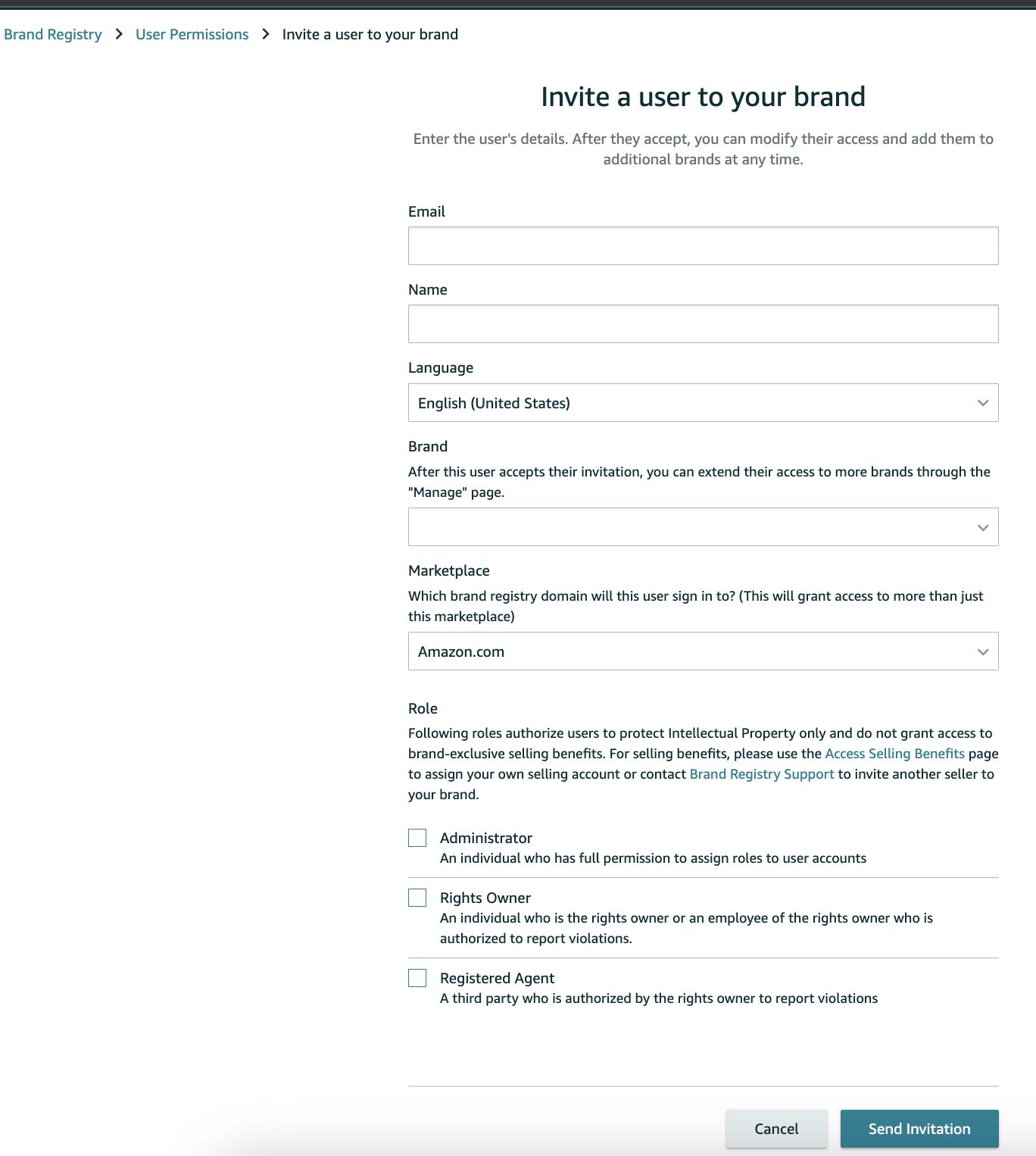
Invite ppc@adverio.io to your brand in Brand Registry. Only a Brand Registry Administrator can do this.
- Go to Brand Registry → Settings → User Permissions → Invite a user to your brand.
- Enter ppc@adverio.io, select your brand and each marketplace you want us working in.
- Assign us the Administrator role, then send the invitation.
The roles and screenshots are in Brand Registry Roles below.
Brand Registry Roles
Last verified by PPC Ops Team · December 30, 2025
The three Brand Registry roles
Amazon Brand Registry assigns the roles of Rights Owner and Administrator to a brand once it is enrolled. These roles allow users to manage the brand and assign different levels of access to Brand Registry tools. There are three roles that can be assigned to user accounts associated with a brand:
01Invite a user to your brand
To assign a new role, the individual must create a Brand Registry user account and accept the terms. If the user already has a Seller or Vendor account with Amazon, they can use the same credentials to create a Brand Registry user account.
The Administrator of the brand can add users to the brand through the "Invite a user to your brand" page, using this path:
Settings → User Permissions → Invite a user to your brand

02Remove a user or adjust roles
The Administrator of the brand can remove a user from a brand and adjust the roles of existing brand users through this path:
Settings → User Permissions → Manage next to the email of the user who needs the change.
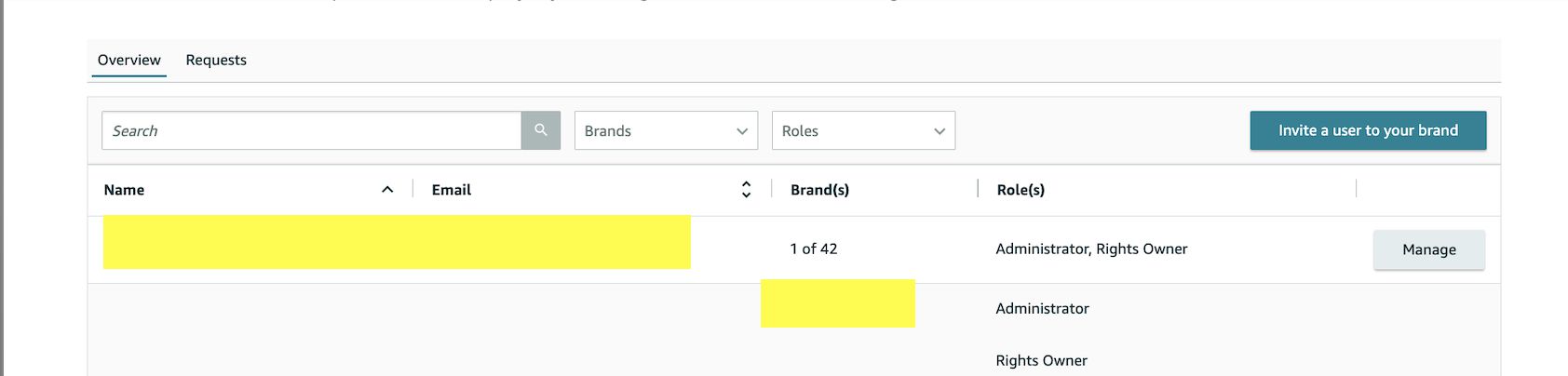
An individual may be assigned up to two roles and be associated with multiple brands in their Brand Registry user account. There is no limit to how many user accounts can be associated with a brand.
Renewing access every 365 days
Authorizations now expire after 365 days. Our team will reach out before then to update the access.
01Approve the SPP authorization link again
Open the link in Step 1, sign in as the primary or administrator user, select your marketplaces and grant consent.
02Re-add ppc@adverio.io in Seller Central
- Log in to Seller Central (sellercentral.amazon.com).
- Go to Settings → User Permissions.
- Click Add a new user and enter the email ppc@adverio.io.
- Assign the appropriate permissions again, including Advertising access.
- Send the invitation.